How to Blur Faces in Photos on Android (Free, No App Needed)
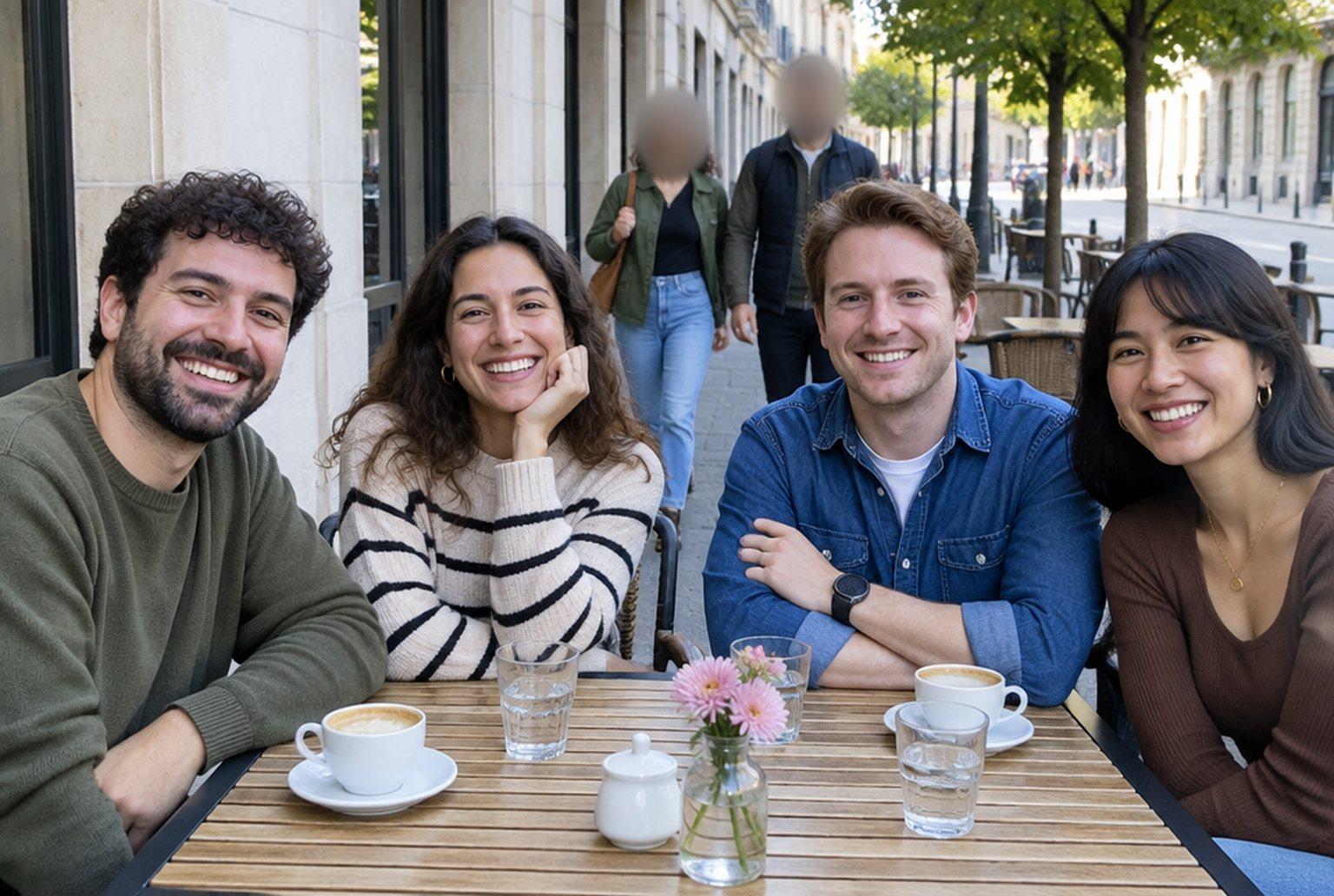
The quickest free way to blur a face in a photo on Android is in the browser. Open our free face blur tool in Chrome, choose the photo, tap the faces you want hidden, and download the result. There is nothing to install, no account and no watermark, and the photo is not uploaded.
Android itself has no single "blur face" button. Samsung Gallery and Google Photos can hide a face by hand, Signal can blur faces in a photo you are about to send, and a few Play Store apps do it automatically. This page covers each one, with what it really does today.
One thing to know first: BlurQ, our app, is for iPhone only. We have no Android app. The browser tool below is what we offer on Android, and it is free.
The Options at a Glance
| Method | Finds faces for you? | Install needed? | Cost |
|---|---|---|---|
| BlurQ web tool (Chrome) | Yes, and you tap to choose | No | Free, no watermark |
| Samsung Gallery | No. Draw or sticker by hand | No (Galaxy phones) | Free |
| Google Photos | No. Redact by hand | Google Photos app | Free |
| Signal | Yes, for photos you send | Yes (Signal app) | Free |
| Blur Face (Play Store) | Yes | Yes | Free with ads; in-app purchases |
Method 1: Blur Faces in Chrome With Our Free Tool
This is the route we recommend on Android, because it finds the faces for you and you install nothing. The tool runs inside the browser on your phone. The photo is processed on the device and never sent to a server.
- Open Chrome on your Android phone and go to blurq.app/tools/blur-faces-online.
- Tap to choose a photo and pick it from your gallery or files.
- Wait a moment. The faces are detected in the browser automatically.
- Tap a face to switch its blur on or off. Hide everyone, or only the people you choose.
- Pick a style: blur, pixelate or mosaic.
- If a small or sideways face was missed, paint over it with the manual brush. The brush also works for a name tag, a screen or a tattoo.
- Download the photo. It is saved to your phone with no watermark.
The limits, plainly. The tool handles photos only, not video. You need a connection to load the page. Very large photos take longer on an older phone. If you want to know more about how the photo stays on your device, see blurring faces online with no upload.
Method 2: Samsung Gallery
On a Galaxy phone, the Gallery editor has no dedicated face blur, as far as Samsung's help pages show as of November 2026. What it does have are tools that can cover a face by hand. Samsung's photo editing guide lists Decorations with Draw, Stickers and Text.
- Open the photo in Gallery and tap the Edit icon (the pencil).
- Open Decorations and tap Stickers, then place a sticker so that it covers the whole face.
- Or tap Draw, choose a pen and a solid colour, and paint over the face until nothing shows through.
- Save. To keep the original as well, use More options and Save as copy.
Samsung also has Object eraser, and AI erase on Galaxy AI phones. These remove a person or object from the photo. That is useful for a stranger in the background, but it is not a blur, and it is the wrong tool when the person should stay in the picture with their face hidden.
Method 3: Google Photos
People often expect Google Photos to blur faces, because it has tools with similar names. Here is what each one does, according to Google's help page for editing photos on Android.
- Blur adjusts background blur. It softens what is behind the subject, not the face.
- Magic Eraser removes unwanted distractions from a photo. It deletes the person; it does not blur them.
- Unblur sharpens a photo. It is the opposite of what you want here.
- Markup has a Redact tool. Google describes it as the way to blur or remove sensitive info. This is the one that can hide a face.
To use Redact, open the photo, tap Edit, then Markup (on some phones it sits under Tools), tap Redact and cover the face. Choose Save as copy to keep the original untouched. Google states that when you share a redacted photo, other people cannot undo the edit or uncover the hidden pixels.
The catch is that Redact is manual. Google's help page does not describe any face detection for it, so you cover each face yourself. Google also notes that most editing features need at least 3 GB of RAM and Android 8.0 or later.
Method 4: Signal, for Photos You Send
Signal has a blur tool inside its image editor. Signal's own announcement of the blur tools says it can blur the faces in a photo for you, that you can draw with a blur brush over any face or area it missed, and that all of the processing happens on your device. Signal also says plainly that the detection does not catch every face every time, so check the result.
To use it, attach a photo in a Signal chat, tap the blur icon in the editor, and send. The tool is part of sending a message, so it suits photos you share in Signal. The announcement describes blurring every face, plus the brush. It does not describe a way to pick single faces.
Method 5: A Face Blur App From Google Play
If you blur photos often and want an installed app, these are two well-known options. The details below are what each Play Store listing states as of November 2026. We have not run tests on them.
- Blur Face - Censor Image, by Double Ape. The listing says it finds every face in a photo automatically, blurs or pixelates them or covers them with an emoji, lets you select any other area, and can edit multiple photos at once. It states that detection runs on the device and photos are never uploaded. The listing is marked "Contains ads" and "In-app purchases".
- PutMask - Censor Video & Image, by ClipCensor. The listing says it detects faces, license plates and people in videos and photos, works offline, and has no ads. Its free tier covers videos up to two minutes at a time. Premium adds longer videos and HD, FHD and 4K export.
For a wider look at face blur apps on both platforms, see our list of the best apps to blur faces.
How to Blur Only One Face
You need a tool that treats each face on its own. In our web tool, every detected face is a separate toggle. Tap the one person you want hidden and leave the rest alone. The same works in reverse: switch on every face except your own.
With Samsung Gallery or Google Photos you cover faces by hand, so one face is simple. Place the sticker or the Redact stroke on that person only, then zoom in and check that it has not touched the person beside them. More detail is in our guide to blurring one face in a group photo.
Blurring Faces in a Video on Android
Our web tool is for photos only, so it will not help with a video. BlurQ's video face blur is in the iPhone app, which does not run on Android. These are the routes that work on Android.
- PutMask. Its Play Store listing says it finds faces in a video and keeps them covered while they move, free for clips up to two minutes.
- YouTube Studio, if the video is going to YouTube. After upload, the Editor on a computer has Face blur and Custom blur. See our guide to blurring faces for TikTok, Instagram and YouTube.
- A general video editor such as CapCut. You build the blur by hand from an overlay, a mask and keyframes. Our CapCut face blur guide shows the method on iPhone.
For the general approach on any device, read how to blur faces in videos.
Which Style Actually Hides a Face
A light blur looks neat but can leave a face recognisable. Hair, face shape and skin tone survive a soft blur, and people who know the person can still tell who it is.
For a child, a stranger or anyone who must not be identified, use strong pixelation with large blocks, a heavy mosaic, or a solid cover such as an opaque sticker. Then zoom in on the saved photo. If you can still see the eyes or the mouth, raise the strength or make the area bigger.
Our guide to pixelating and censoring faces in photos explains the trade-offs between blur, pixelate and a solid cover.
Wrapping Up
On Android, the shortest path is the browser: open our free tool in Chrome, tap the faces, download. If you would rather stay in an app you already have, Google Photos can cover a face with Redact and Samsung Gallery can cover it with a sticker or a pen, both by hand. Signal blurs faces in photos you send. For video, use an app made for it, since the photo tools above stop at still images.
Frequently Asked Questions
- How do I blur a face in a photo on Android for free?
- Open blurq.app/tools/blur-faces-online in Chrome, choose the photo, tap the faces to hide, pick blur, pixelate or mosaic, and download. It is free, adds no watermark, needs no account, and the photo is not uploaded. Google Photos (Markup, then Redact) and Samsung Gallery (a sticker or the Draw pen) can also cover a face by hand.
- Is BlurQ available for Android?
- No. BlurQ is an iPhone app and there is no Android version from us. On Android, use our free face blur tool in the browser. It detects faces automatically and works in Chrome on Android.
- Can Google Photos blur faces?
- Not automatically. Its Blur tool adjusts background blur, and Magic Eraser removes objects. The tool that can hide a face is Redact, under Markup, which Google describes as the way to blur or remove sensitive info. You apply it by hand to each face.
- Does Samsung Gallery have a face blur?
- There is no dedicated face blur in the Gallery editor, as far as Samsung's help pages show as of November 2026. You can cover a face with a sticker or the Draw pen under Decorations. Object eraser removes a person from the photo, which is different from blurring a face.
- Is there a website to blur faces without installing an app?
- Yes. Our face blur tool at blurq.app/tools/blur-faces-online runs in the browser on Android, iPhone and desktop. Faces are detected on your device, you tap the ones to hide, and you download the result with no watermark.
- How do I blur faces in a video on Android?
- Use a video app, since photo tools do not handle video. PutMask's Play Store listing says it finds and tracks faces in video, free for clips up to two minutes. If the video is for YouTube, YouTube Studio's Editor on a computer has a Face blur tool after upload. Our own web tool is photos only.
- Can I blur just one person and keep the others clear?
- Yes. In our web tool each detected face is its own toggle, so you tap only the person you want hidden. In Google Photos or Samsung Gallery you place the Redact stroke or sticker on that one face by hand.

Try BlurQ Free
Blur faces in photos & videos, blur backgrounds, censor anything. 100% offline on your iPhone — your photos never leave your device. On Android or desktop? Use the free web tool.
Prefer not to install anything? Try our free online face blur tool — it runs in your browser, and your photo is never uploaded.