How to Blur Faces in Videos for TikTok, Instagram and YouTube
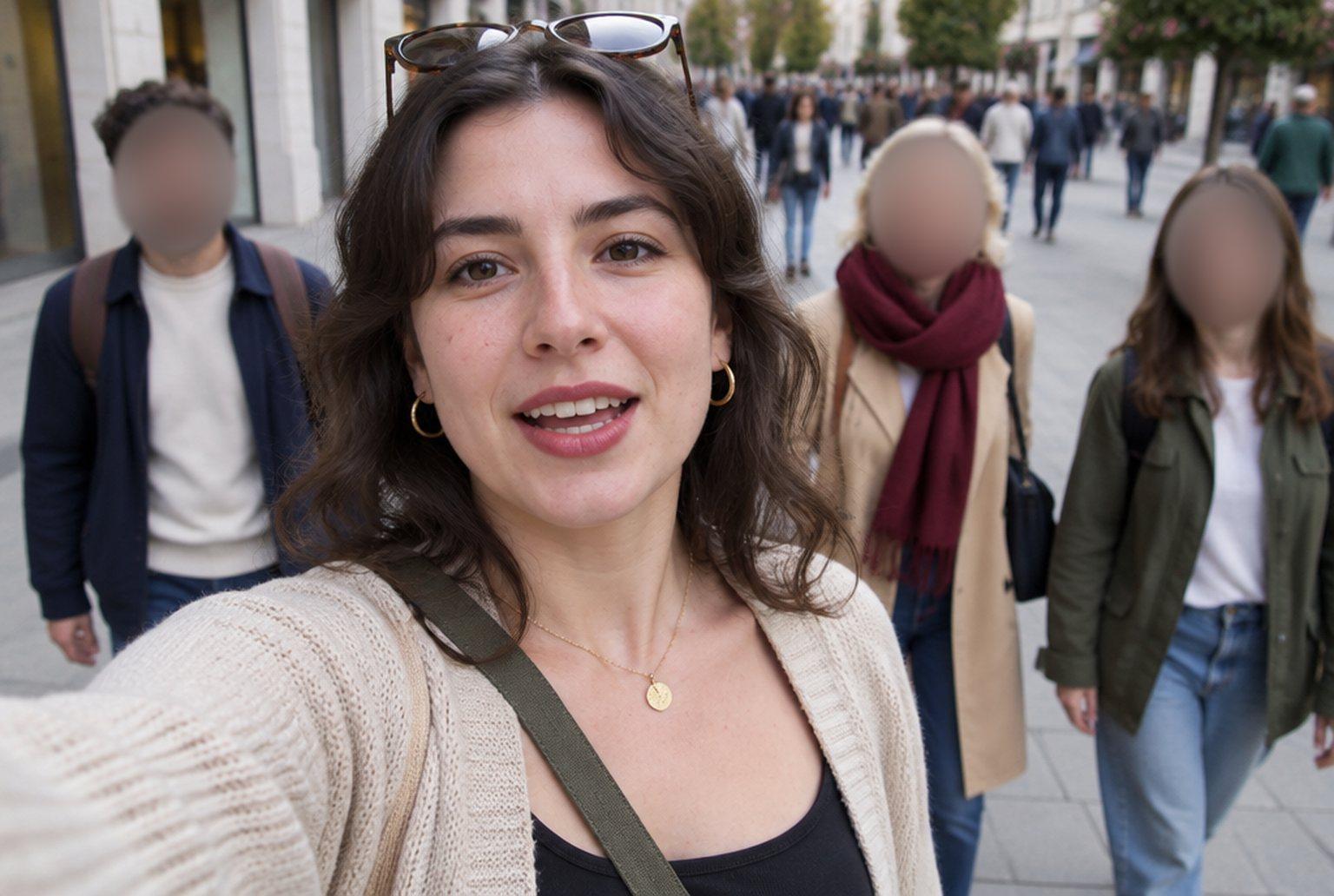
Of the three, only YouTube has a built-in face blur, and it works after the video is uploaded, in YouTube Studio on a computer. TikTok and Instagram have no dedicated face blur in their editors, as far as their help pages show as of November 2026. For those two, and for Stories, Snapchat and WhatsApp, the method that works is to blur the faces in the clip on your phone first and then upload the finished video.
This page goes platform by platform: what each one offers, where it stops, and the steps. Then it covers the blur-first method that works everywhere.
What Each Platform Offers
| Platform | Built-in face blur? | Follows moving faces? | When you can apply it | Limits |
|---|---|---|---|---|
| YouTube | Yes: Face blur and Custom blur | Yes. Custom blur has Track object | After upload, in YouTube Studio | Computer only; the original is uploaded first; saved edits cannot be reverted |
| TikTok | None documented | No | Not applicable | Effects and editing tools only; blur before you upload |
| Instagram Reels and Stories | None documented | No | Not applicable | Draw, stickers and text can cover; none of them is a face blur |
| Instagram Edits app | None documented | Some effects follow a person, but not a blur | Not applicable | Effects such as Tag, Scribble and Sparkle; no blur listed |
| Snapchat | None documented | A sticker can be pinned to an object | Before sending | A sticker covers; it is not a blur |
| Manual Blur Tool for photos | No | Before sending a photo | Drawn by finger; the help page covers photos only |
YouTube: Face Blur in YouTube Studio
YouTube is the only one with a real face blur. It lives in the YouTube Studio editor, and YouTube's help page on blurring videos says it is done on a computer. The video has to be uploaded before you can blur it.
- Sign in to YouTube Studio on a computer and select Content from the left menu.
- Click the title or thumbnail of the video, then select Editor from the left menu.
- Select Blur, then Face blur.
- Wait for processing. Then select the faces you want to blur and click Apply.
- Click and drag the box to adjust the blur if needed.
- Click Save.
For a license plate, a logo or a screen, choose Custom blur instead. You draw a rectangle or an oval, drag the ends on the timeline to set when the blur starts and stops, and choose Track object so the blurred area moves, or Fix blur position so it stays in one place.
Where it stops. The unblurred video is already on YouTube when you start. YouTube's visibility settings let you keep a video Private, seen only by you and people you choose, so keep it Private until the blur is saved. YouTube also notes that since June 2025 you cannot undo saved editor changes with Revert to original, so check the faces before you save. And because the tool is in Studio on a computer, it does not help if you post only from your phone.
TikTok: No Face Blur in the App
TikTok's help centre has pages for effects, camera tools and editing. Its Effects page explains how to add an effect from the camera screen before you record. We found no page there that describes a face blur, a mosaic or a tool that follows a face. So, as far as TikTok's help pages show as of November 2026, the app has no dedicated face blur.
A visual effect made for looks is not built to hide a person in every frame. If someone in your video must not be recognised, do not depend on an in-app effect.
- Blur the clip on your phone first (see the method below).
- Save the blurred video to your gallery.
- In TikTok, tap the Add Post + button, choose the blurred video, and post as usual.
Instagram: Reels, Stories and the Edits App
Instagram's help pages list the tools for each format, and none of them is a face blur as of November 2026.
- Reels. Instagram's page on editing reel clips lists scale, crop, rotate, undo and redo, with text, music and effects on other pages. No blur is listed.
- Stories. The story editor has filters, music, stickers, Draw with different brushes, and text. Text can be pinned to a fixed spot in a video. No blur is listed.
- Edits. Instagram's separate video app has an Effects tool. Instagram's help page for Edits effects says effects such as Tag, Scribble and Sparkle are applied to a specific person or object that the app identifies. These decorate a subject. The page does not list a blur.
You can cover a face in a Story with a sticker or a thick Draw stroke. That works for a still photo. In a video the person moves and the cover does not follow, so the face slips out. For a Reel or a video Story, blur the clip first and upload the result.
Snapchat and WhatsApp Status
Snapchat's help section on editing Snaps covers drawing, text and stickers. A sticker can be pinned to an object, and Snapchat says it will then move, rotate and change size with whatever it is pinned to. That can cover a face in a short Snap, but it is a sticker, not a blur, and Snapchat's help pages do not list a blur tool.
WhatsApp has a Blur Tool in its photo editor: tap Draw, then Blur Tool, and rub over the part to hide with your finger. WhatsApp's help page describes it for photos only and it is manual, with no face detection mentioned. For a video status, blur the clip before you add it.
The Method That Works Everywhere: Blur First, Then Upload
Every platform accepts a finished video file. If the faces are already blurred in that file, it does not matter what the platform's editor can or cannot do, and the unblurred version never leaves your phone.
On iPhone, this is what BlurQ, our app, is made for. It is free to download, needs iOS 18 or later, and processes the video on the phone with no upload and no account.
- Open the video in BlurQ. Faces are found automatically as soon as the video opens, and each face gets its own strip on the timeline.
- Choose which faces to blur and which to keep. The blur follows each face as it moves.
- For a license plate, a logo or a sign, use Track: tap the thing or draw a box, press Start, and the blur follows it forward and back through the clip.
- To hide everybody at once, use People, which blurs everyone in the shot.
- For a lighter look, use Eyes only, a bar over just the eyes that follows the face. An emoji or a solid colour can also cover a face.
- Export, then upload the saved video to TikTok, Instagram or YouTube like any other clip.
The limits. Free export covers the first 8 seconds of the video at 720p, which is enough to try it and for a very short Story. Full-length export needs Pro, a one-time purchase of $9.99 with no subscription. BlurQ is iPhone only. It also does not find text or plates in video on its own, which is why you point Track at them. The full walkthrough is in how to blur faces in a video on iPhone.
On Android we have no app. Our guide to blurring faces on Android lists what works there, including a video app from Google Play.
The Manual Route: CapCut
If you already edit in CapCut, you can build a face blur by hand. CapCut's own guide describes the phone method: add a blur effect, add the same video again as an overlay, apply a circle mask, invert it, and add keyframes so the mask keeps up with the face. CapCut says blurring is free. The same guide mentions Track mask, which follows a subject for you, only in its PC steps.
That is fine for one face that barely moves. Each extra face and each movement adds work. Our CapCut face blur guide has the full steps and the places where it gets slow.
Children and Bystanders: Blur Before You Post
Most questions about face blur on social media come from two cases: someone else's child is in the video, or strangers are in the background. Neither of them agreed to be in your post, and a public video can be saved and shared again long after you delete it.
- Other people's children: hide their faces unless a parent has said yes. Birthday parties, school events and sports days are the usual cases.
- Your own children: many parents now post with the face covered. Our guide to hiding kids' faces in photos covers the options.
- Bystanders: in a gym, a shop, public transport or a street interview, blur anyone who is not part of the video.
- Use a strong style. In video a viewer sees hundreds of frames, so a light blur hides little. Pick heavy pixelation or a solid cover.
- Watch the whole clip once before posting. Faces are most often missed in the first and last moments they are on screen.
Wrapping Up
YouTube can blur faces for you, but only after upload and only in Studio on a computer. TikTok and Instagram do not offer a face blur in their own editors, and stickers do not stay on a moving face. The dependable method is the same for every platform: blur the faces in the clip on your phone, check the result, then upload the finished file. For more on the general technique, see how to blur faces in videos and our guide to censoring photos for social media.
Frequently Asked Questions
- How do I blur a face in a TikTok video?
- TikTok has no dedicated face blur in its editor, as far as its help pages show as of November 2026. Blur the faces in the clip on your phone first, save the video, then upload it to TikTok. On iPhone, BlurQ finds faces when the video opens and keeps the blur on them as they move.
- Can I blur a face in an Instagram Reel or Story?
- Not with a built-in blur. Instagram's help pages list stickers, Draw and text for Stories and basic clip tools for Reels, but no face blur. A sticker can cover a face in a still photo, but it does not follow a moving face in a video. Blur the clip before you upload it.
- How do I blur faces on YouTube?
- In YouTube Studio on a computer, open Content, click the video, select Editor, then Blur and Face blur. After processing, select the faces to blur, click Apply, then Save. The video must be uploaded first, so keep it Private until the blur is saved.
- Can YouTube blur faces before the video is uploaded?
- No. YouTube's blur tools are in the YouTube Studio editor and work on a video that is already on your channel. If you do not want the unblurred video on YouTube at all, blur it on your device first and upload the blurred file.
- Does Instagram's Edits app have a face blur?
- Instagram's help pages for Edits describe effects such as Tag, Scribble and Sparkle that attach to a person or object, plus tools for text, captions and audio. They do not list a blur as of November 2026.
- Is there a free way to blur faces in a video for social media?
- Yes, with limits. YouTube Studio's Face blur is free for videos on your channel. CapCut's manual overlay and mask method is free, according to CapCut. BlurQ on iPhone is free to try, and the free export covers the first 8 seconds at 720p; full-length export is a one-time $9.99 Pro purchase.
- Will a sticker or emoji added in the app hide a face safely?
- Only in a still image, and only if it is fully opaque and covers the whole face. In a video the person moves and a fixed sticker does not follow, so the face shows in some frames. For video, use a blur that tracks the face, applied before you upload.

Try BlurQ Free
Blur faces in photos & videos, blur backgrounds, censor anything. 100% offline on your iPhone — your photos never leave your device. On Android or desktop? Use the free web tool.
Prefer not to install anything? Try our free online face blur tool — it runs in your browser, and your photo is never uploaded.